Calling the boss for every payment
Staff phone the owner or shout across the shop to ask “has it come?” while the customer stands waiting.
For Ghanaian businesses that take MTN MoMo
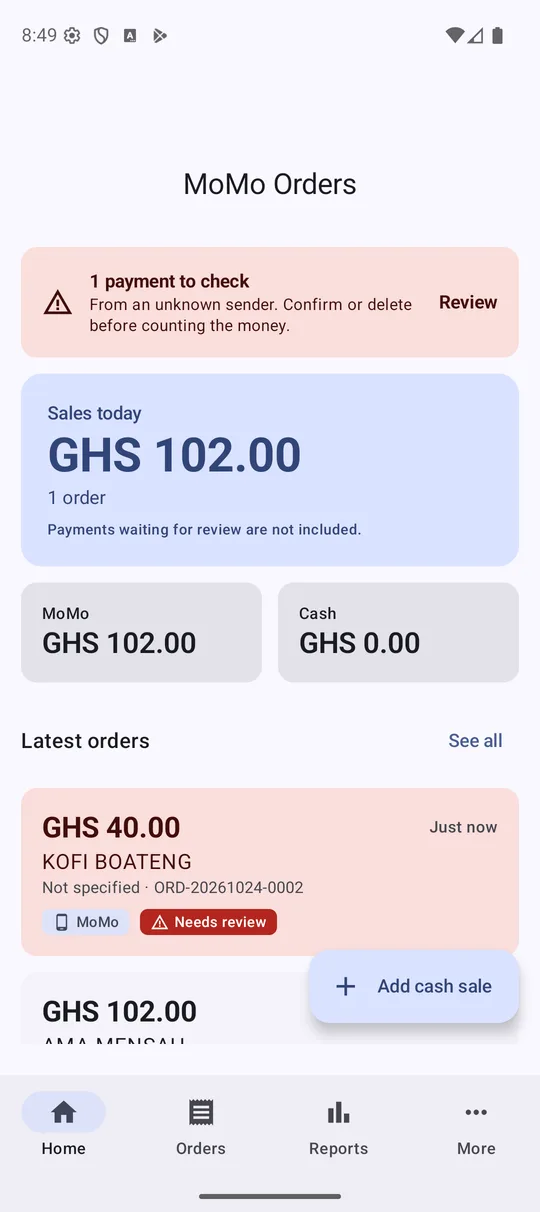
Momo POS puts every MTN MoMo payment on your counter screen within seconds, with the amount and the payer's name. No calling the boss. No scrolling through SMS. No “I have sent it” arguments.
Payment received for GHS 40.00 from KOFI BOATENG…
Sound familiar?
Staff phone the owner or shout across the shop to ask “has it come?” while the customer stands waiting.
When the shop phone is with the owner, attendants take payments on their personal MoMo, and you never see that money in your records.
A rushed check at a busy counter is where a fake “Payment received” message slips through.
Payments and sales aren't linked, so closing the day means scrolling through SMS with a calculator.
How it works
Momo POS reads the “Payment received” SMS that MTN already sends to your MoMo number. Your customers pay exactly the way they do today.
On the Momo Till at the counter, the teller enters the amount and picks MoMo. The sale waits for payment.
They send MTN MoMo to your business number, the normal way. Nothing new for them to learn or install.
The Android phone with your MoMo SIM gets MTN's usual SMS. Momo POS records the amount, name, reference and transaction ID, and ignores every other message.
The payment reaches the counter over your shop Wi-Fi, matches the waiting sale, and the receipt prints. Next customer.
The phone sends each payment straight to your tills over your own Wi-Fi router. It does not travel through an Intiv server. A till outside the shop, or an owner who takes the MoMo phone home, can use the optional internet link.
Watch it work
Two short films: how a payment flows through the shop, and how an owner stays in control while away.
I want this for my businessThe platform
Each payment appears on the teller's own screen with the amount and payer's name, taken from MTN's official message.
SMS → phone → till
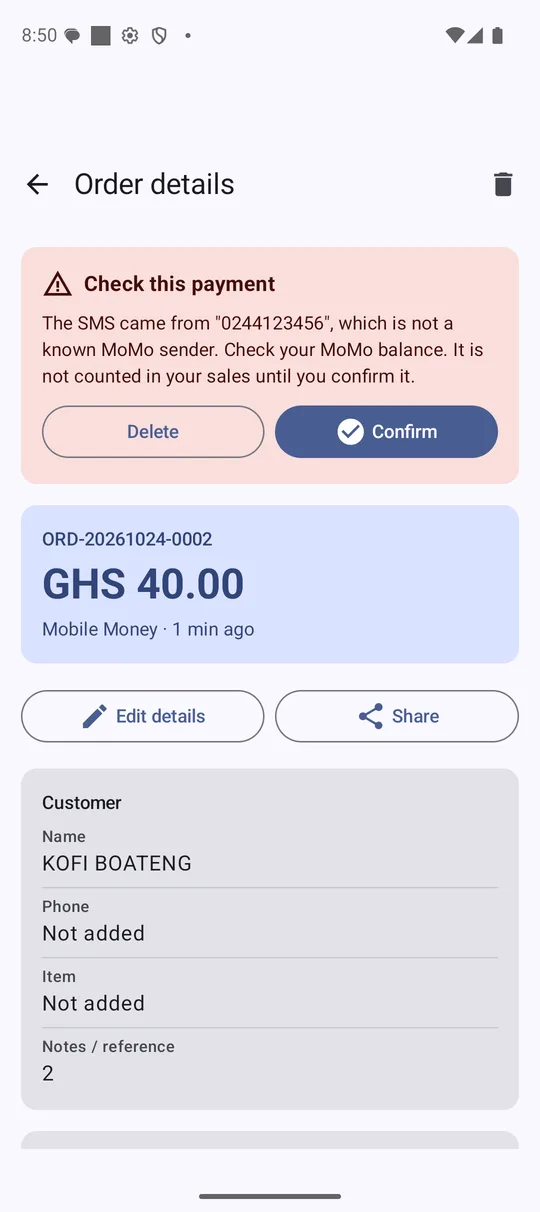
Messages that aren't from MTN's MoMo sender are marked “Needs review” and stay out of your sales until someone confirms them.
status: needs_review
Use a computer, an Android tablet or an Android phone as the till. iPhone and iPad tills are coming soon.
computer · tablet · phone
Record cash sales on the till too, so every cedi taken is in one place and the day closes itself.
MoMo + Cash = Sales
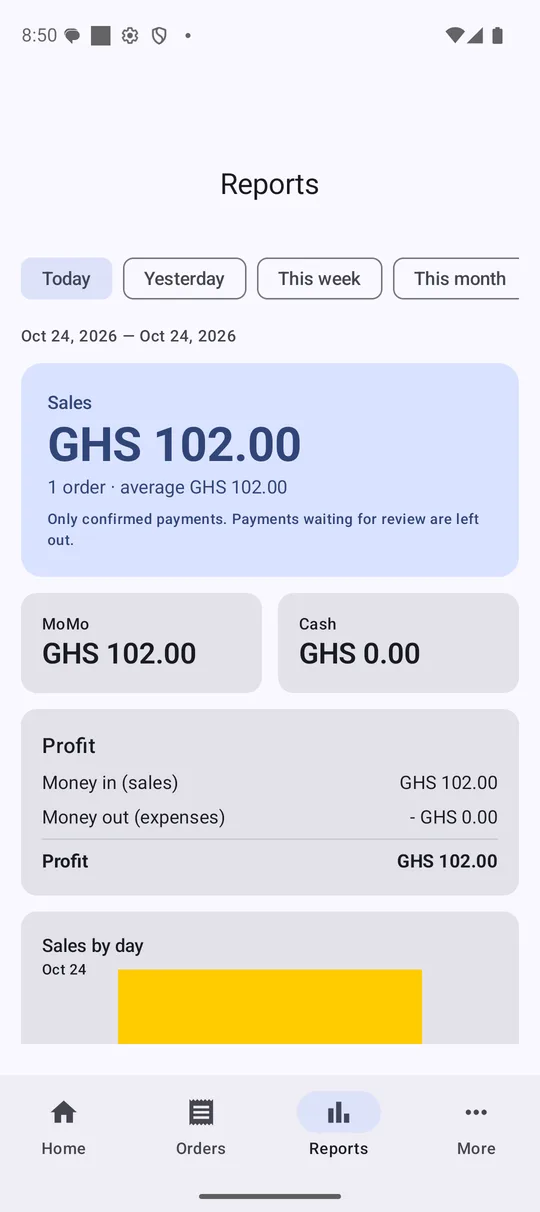
Daily, weekly and monthly totals, with profit after expenses. Export to Excel (CSV) or PDF for the books.
Today · Week · Month
Connect a Bluetooth, USB or network receipt printer and the receipt prints as soon as the payment lands.
ESC/POS printers
When one till takes a payment, no other till can use it again. No double counting between counters.
first claim wins
Optional: tell a staff member on WhatsApp the moment a payment lands, even without a till.
optional add-on
Back up your records so a new phone doesn't mean starting again.
backup · restore
Who it's for
At peak hours every MoMo order that waits for a confirmation holds up the queue. With Momo POS the cashier sees “Paid” and moves on, and you see the day's takings without counting SMS.
“The customer has paid, the food is ready, and nobody had to phone the boss.”
What changes at the counter
Tellers no longer call out each MoMo amount for a supervisor to check. Each counter gets its own till, payments go to the right counter, and the supervisor only looks at payments marked “Needs review”.
“The supervisor is free to run the shop, and the queue keeps moving.”
What changes for the supervisor
Pharmacies, salons, mechanics and service businesses get a clean record of who paid, how much and when, with the MTN transaction ID kept for every payment.
“If the customer says they've paid, it's on the screen, or it isn't.”
What changes for staff
We visit, set up and train on site, run a two-week pilot at one outlet, then roll out branch by branch with the same setup. Each outlet keeps its own MoMo number and its own records.
“Management sees each outlet's MoMo and cash totals, ready to export.”
What changes for management
For the owner
Keep the MoMo phone with you. Your shop tills still show “Paid”, and the tills' cash sales come back to your phone so MoMo and cash end up in one record.
Safety and security
Momo POS only reads the payment alert MTN already sends you. It has no way into your MoMo account.
What you need
Momo POS works with MTN MoMo. Payments from other wallets are checked the way you do today.
How we get you started
Fill in the form below. We call or WhatsApp you back.
We look at your MoMo number, counters, Wi-Fi and printers.
We set up the phone and tills, pair them, and train your staff on site.
Faster queues, fewer arguments, and the day's totals ready when you close.
Pricing
The price depends on how many counters and outlets you run. Tell us about your business and we'll send a clear quote, with setup and training included.
No. They pay with MTN MoMo exactly as they do today, to your usual business number.
No. It has no permission to send SMS or dial *170#, it never asks for your PIN, and it cannot sign in to your MoMo account. Your money stays in your wallet.
Only messages from MTN's official MoMo sender count. Anything else is marked “Needs review” and stays out of your sales until you or a supervisor confirm it.
Not yet. Momo POS works with MTN MoMo. Payments from other wallets are checked the way you do today.
No. Momo POS works alongside the equipment you already have. The till can run on a computer, an Android tablet or an Android phone.
The customer can add the counter's code (for example “T2”) to the MoMo reference, or the teller picks the payment from the till's list. Once a till takes a payment, no other till can use it.
Yes. With the optional internet link, your shop tills still get your payments when the phone is away from the shop Wi-Fi, and the tills' sales come back to your phone.
Inside the shop, the phone and tills talk over your own Wi-Fi router. Internet is only needed for a till outside the shop's Wi-Fi, or for WhatsApp alerts to staff.
The MoMo phone must be Android, because it reads MTN's SMS. iPhone and iPad tills are coming soon.
Get started
Leave your details and we'll call or WhatsApp you within one working day to arrange a free setup visit and a quote.